Display
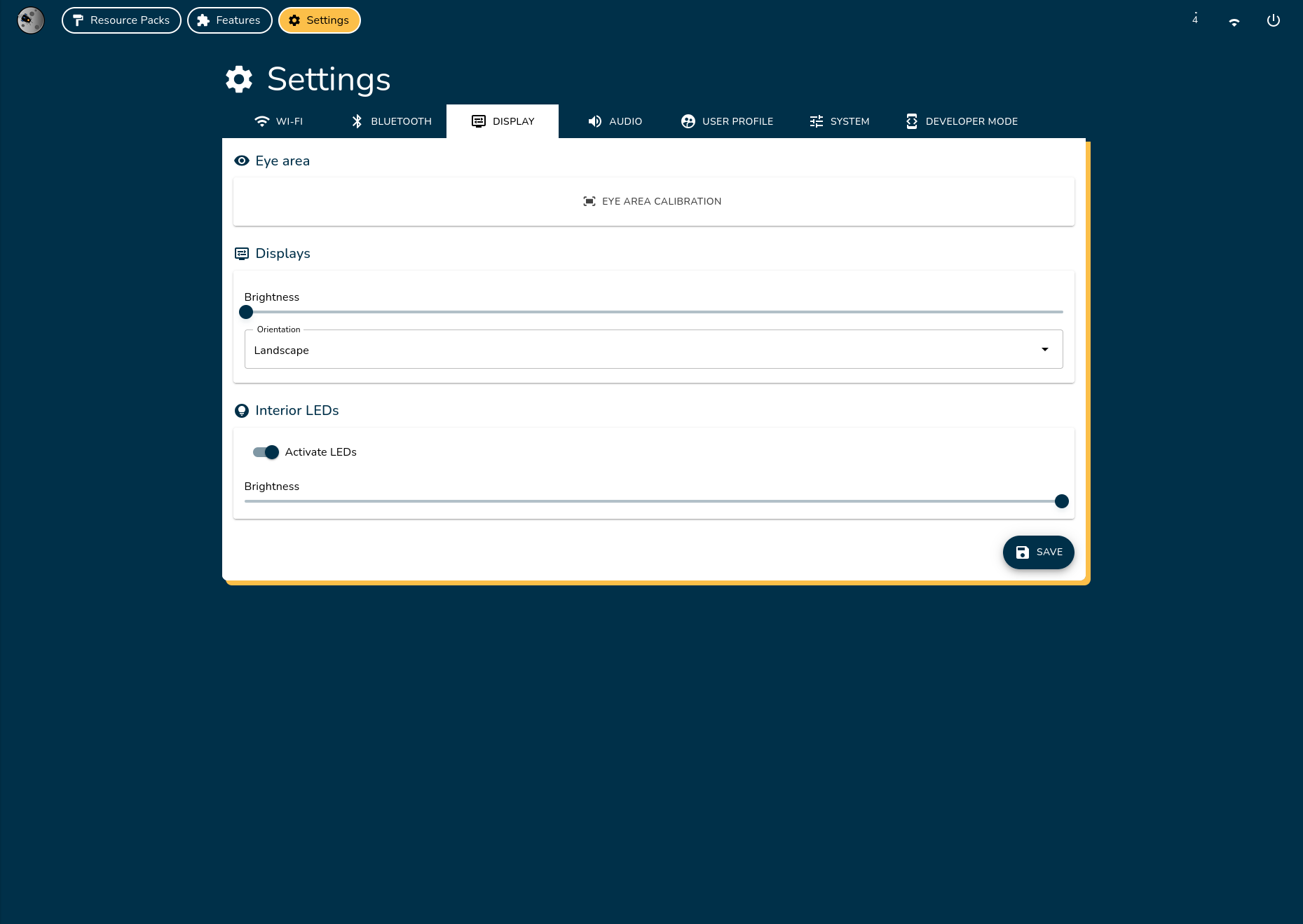
Configure the brightness, orientation, interior LEDs, and eye area movement for your displays.
Calibrate the Eye Area
The eye area defines the zone where the eyes can move. Outside this area, the eyes will not move, ensuring they stay within the visible area of your fursuit or cosplay.
Steps to Calibrate the Eye Area
-
Open the Eye Area Calibration Dialog
Click the Eye Area Calibration button to open the calibration dialog.
-
Adjust the Eye Area
- A green rectangle will appear on the display, representing the current eye area.
- Use the arrows to resize the rectangle to fit your eye area.
- Click Confirm once you are satisfied with the adjustments.
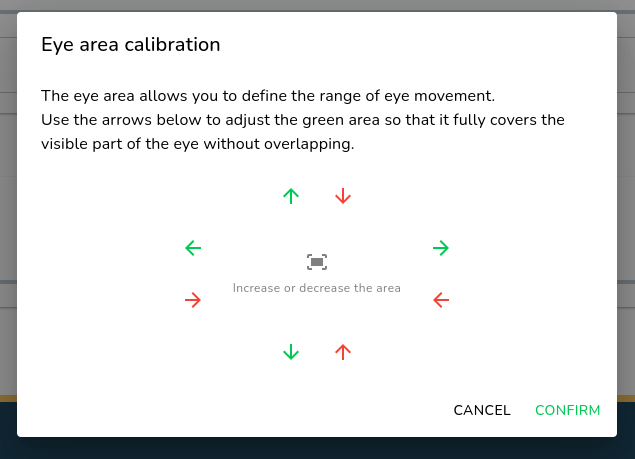
Congratulations! The eye area is now calibrated.
Display Brightness
Custom brightness settings will reset to default values after every reboot.
Adjust the brightness of all displays in real-time using the slider. All displays share the same brightness level.

Display Orientation
A system reboot is required to apply changes to the display orientation.
Change the display orientation between landscape and portrait modes. Click the Save button to apply the new orientation.

Interior LEDs Configuration
The interior LEDs are located at the back of the displays and are used by features to notify the user inside the fursuit or cosplay.
- Toggle the LEDs on/off.
- Adjust the brightness using the slider.
- Click Save to apply your changes.
