Troubleshooting Guide
This guide helps you diagnose and resolve common hardware and software issues with the Louis' Eyes system.
Check OS Logs
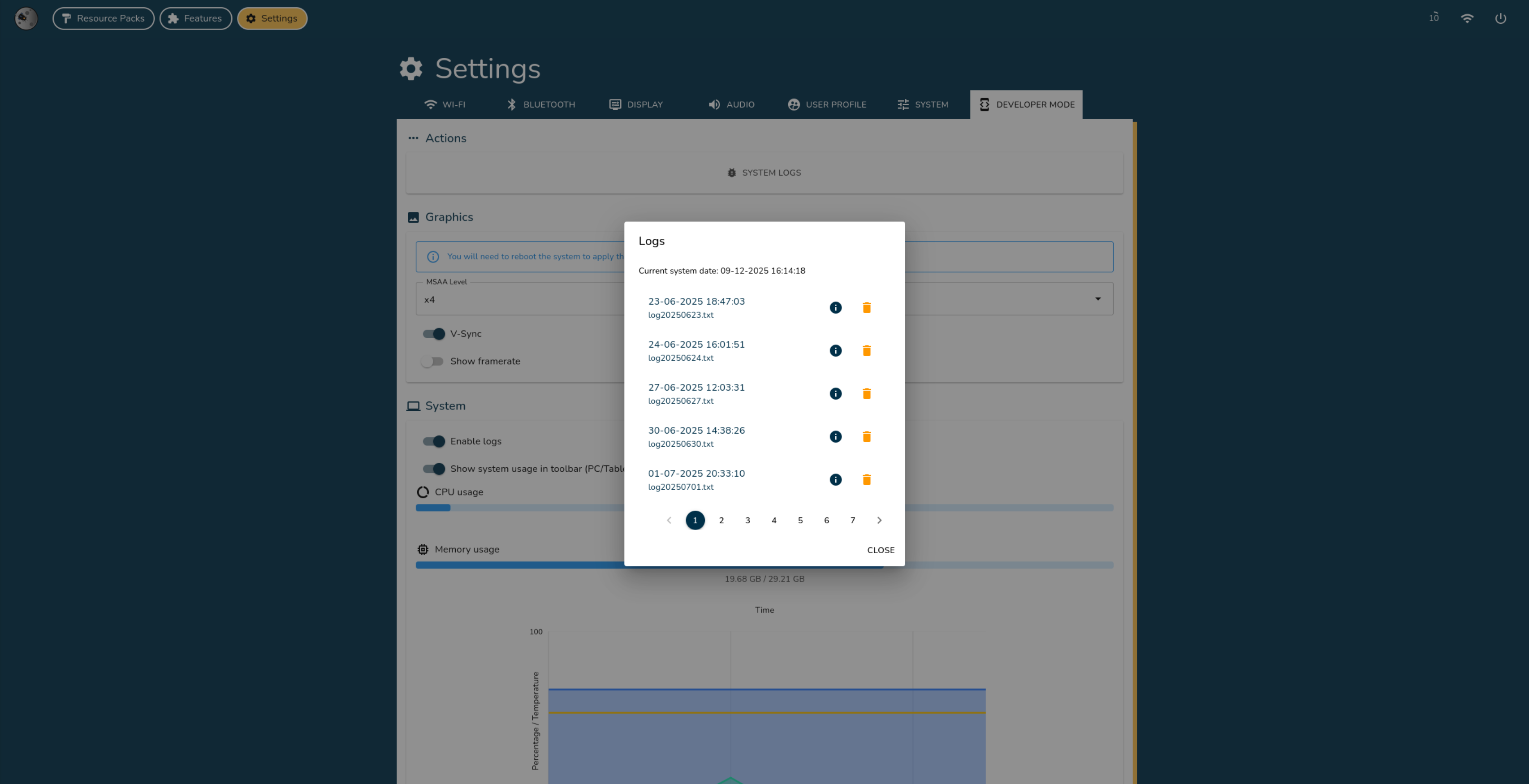
If you encounter issues with the app, you can review the OS logs for errors or warnings:
- Go to Settings → Developer Mode → System Logs.
Check Feature Logs
If a specific feature is malfunctioning, you can inspect its logs:
- Enable logs by going to Settings → Developer Mode and toggling Enable Logs.
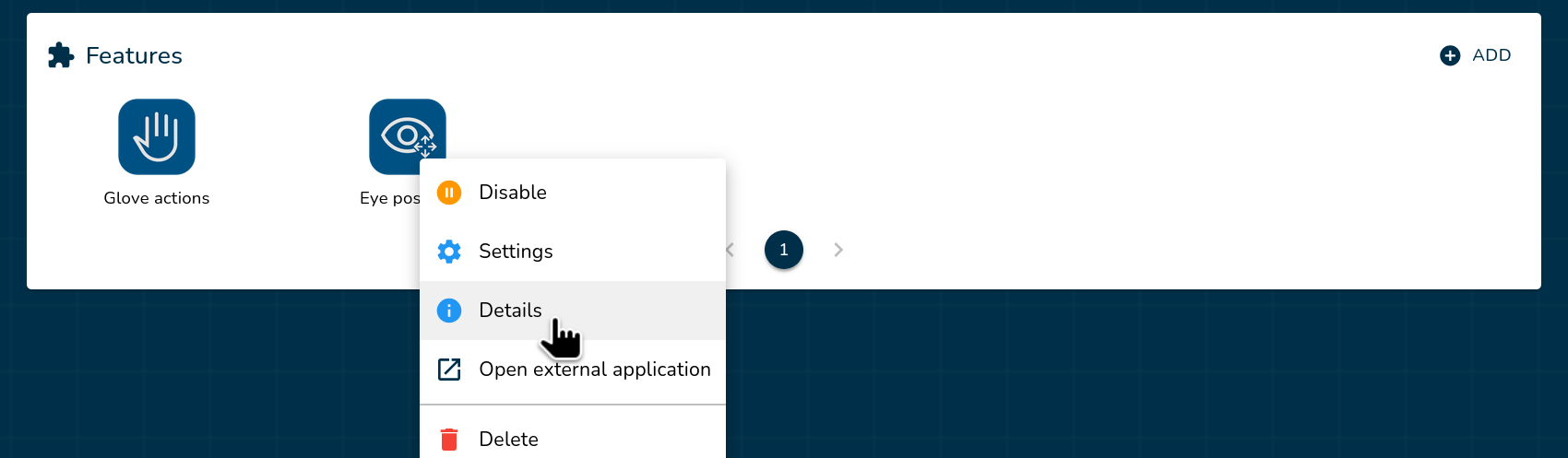
- Navigate to the Features section on the home page. Right-click the problematic feature (or press and hold if you are using a mobile device or tablet) and select Details.
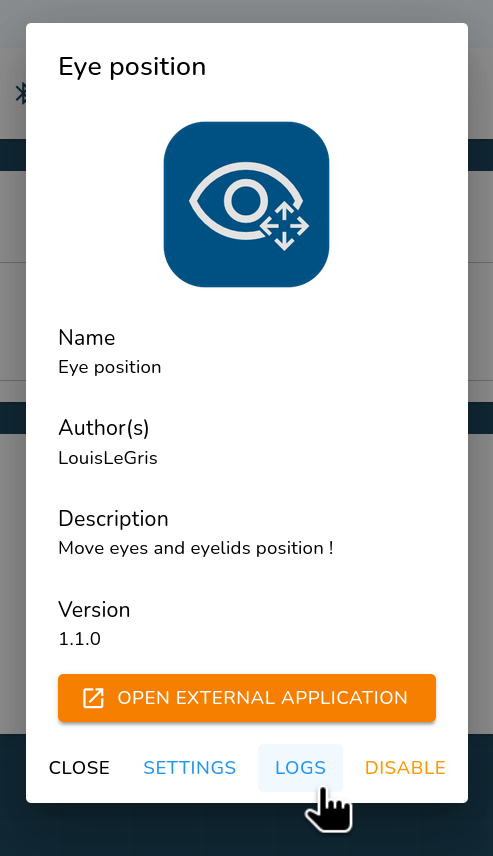
- Click on the Logs button to view the logs.
Monitor System Usage and Temperature
If the system feels slow or unresponsive, check its performance and temperature:
- Go to Settings → Developer Mode → System Usage & Temperature.
Thermal Throttling
- The system begins soft throttling at 65°C and hard throttling at 70°C.
- If throttling occurs, cool the system by placing a small fan near the main unit for a few minutes.
Inspect Display Cables
If you notice display glitches or artifacts:
- Ensure the display cables are securely connected and not bent or damaged.
Reset the System
Warning
Use this option only as a last resort. Resetting the system will erase all settings, resource packs, and features.
Reset via the App
- Go to Settings → System → Reset the System.
- Confirm the action. The system will automatically reboot and restore factory settings.
Reset via Physical Button
- Rapidly press the white button on the main system 15 times.
- The system will automatically reboot and reset to factory settings.