First-Time User Guide
Welcome to your Louis's Eyes System! This step-by-step guide will help you set up your system quickly and safely.
Prerequisites
1. Power Supply Requirements
- USB-C Power Supply (15W minimum):
- Use a certified, high-quality power bank or adapter
- Must support 15W output
- USB-C Cable:
- Must be high-quality and capable of handling 15W
The system typically consumes 800-900mA. A 10,000mAh power bank can provides 9-10 hours of operation.
2. Connection Device
- Smartphone, tablet, or PC with Wi-Fi capability
3. Hardware Installation
- Verify display cables are correctly connected to the motherboard:
- Left display → Left port
- Right display → Right port
Starting the System
- Connect the USB-C power supply to the lightning icon port on the motherboard
- System will automatically boot (up to 30 seconds)
- Blue LED on the left display's back confirms Wi-Fi hotspot activation
Connecting to Luniris OS
- After booting, the Wi-Fi credentials will appear on the eyes display
- Connect using either:
- QR code scan
- Manual entry (SSID and password)
- Open http://luniris.local from any modern web browser.
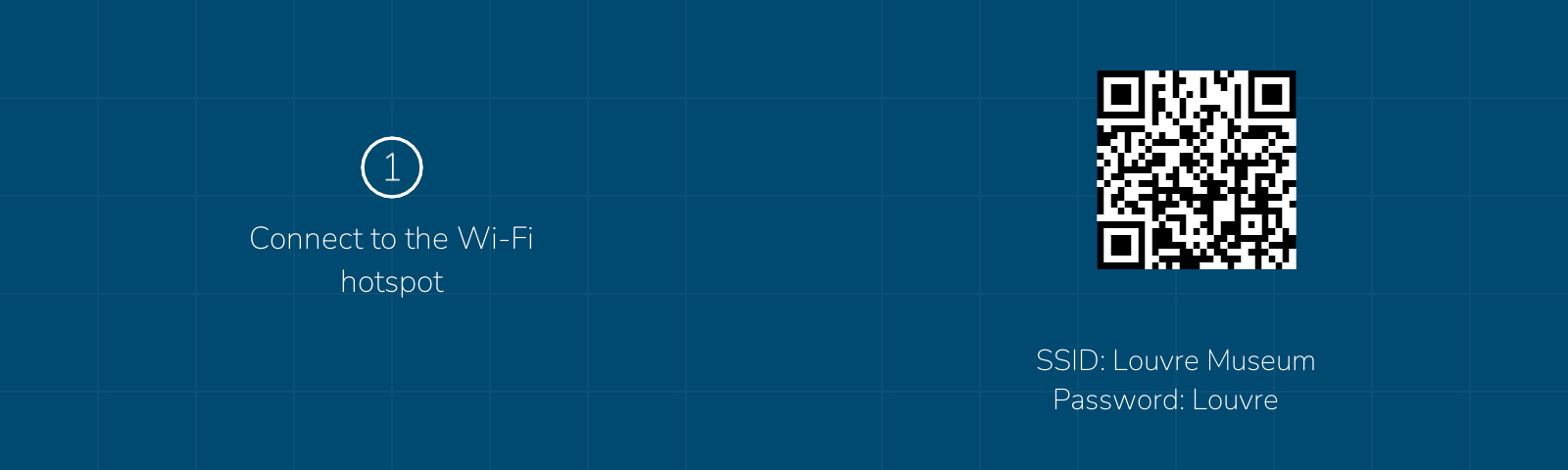
Your device may warn about "no internet access" - this is normal. Confirm to stay connected.
Initial Setup Process
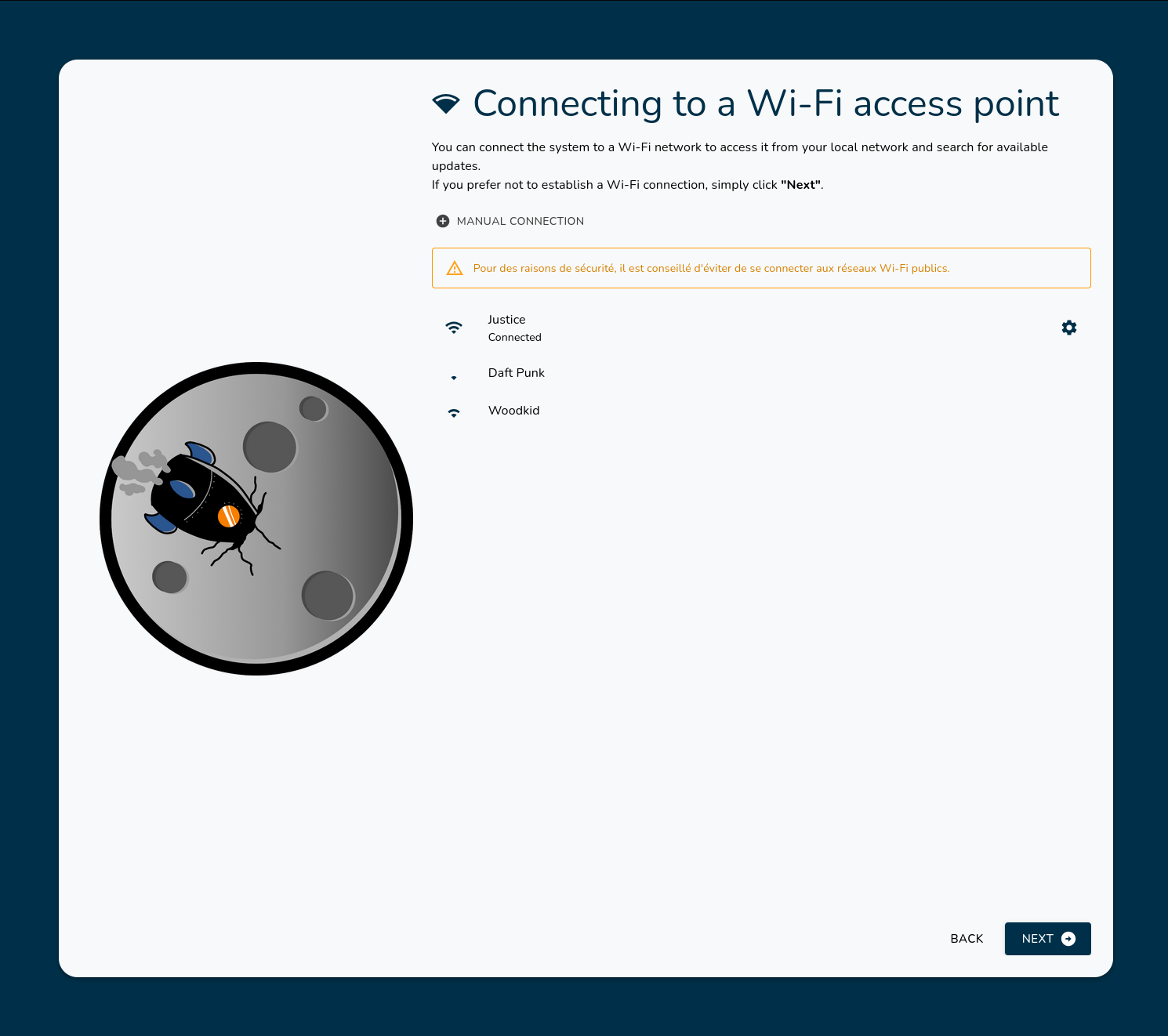
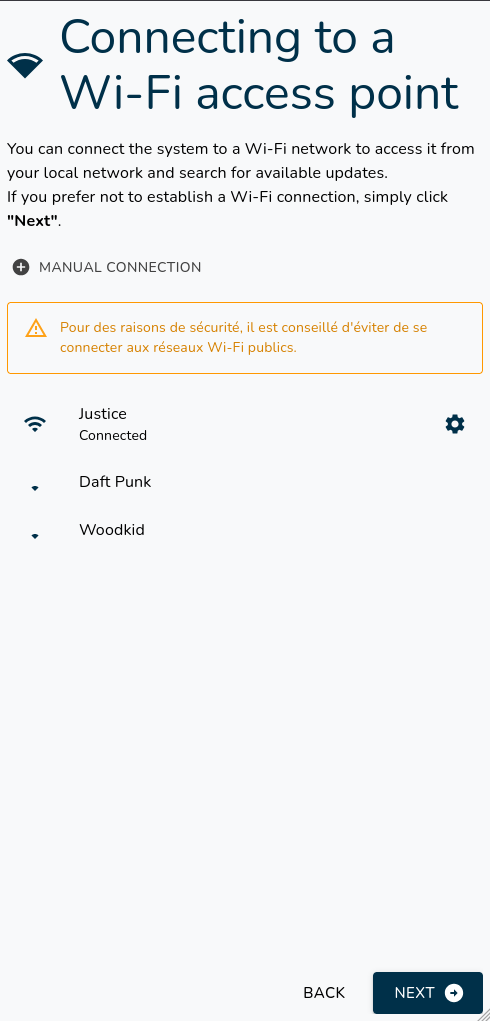
1. Wi-Fi Configuration (Optional)
For security reasons, it is highly recommended to avoid connecting to public Wi-Fi networks (e.g., hotels, restaurants).
Connect to your local network for easier access. This step is optional; you can still connect to the system via Wi-Fi Hotspot Mode:
- Desktop
- Mobile
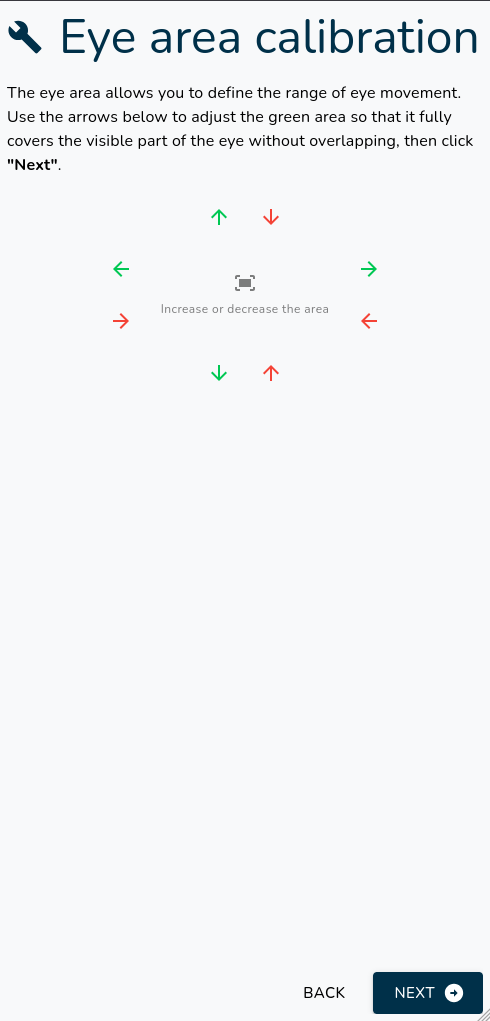
2. Eye Area Calibration
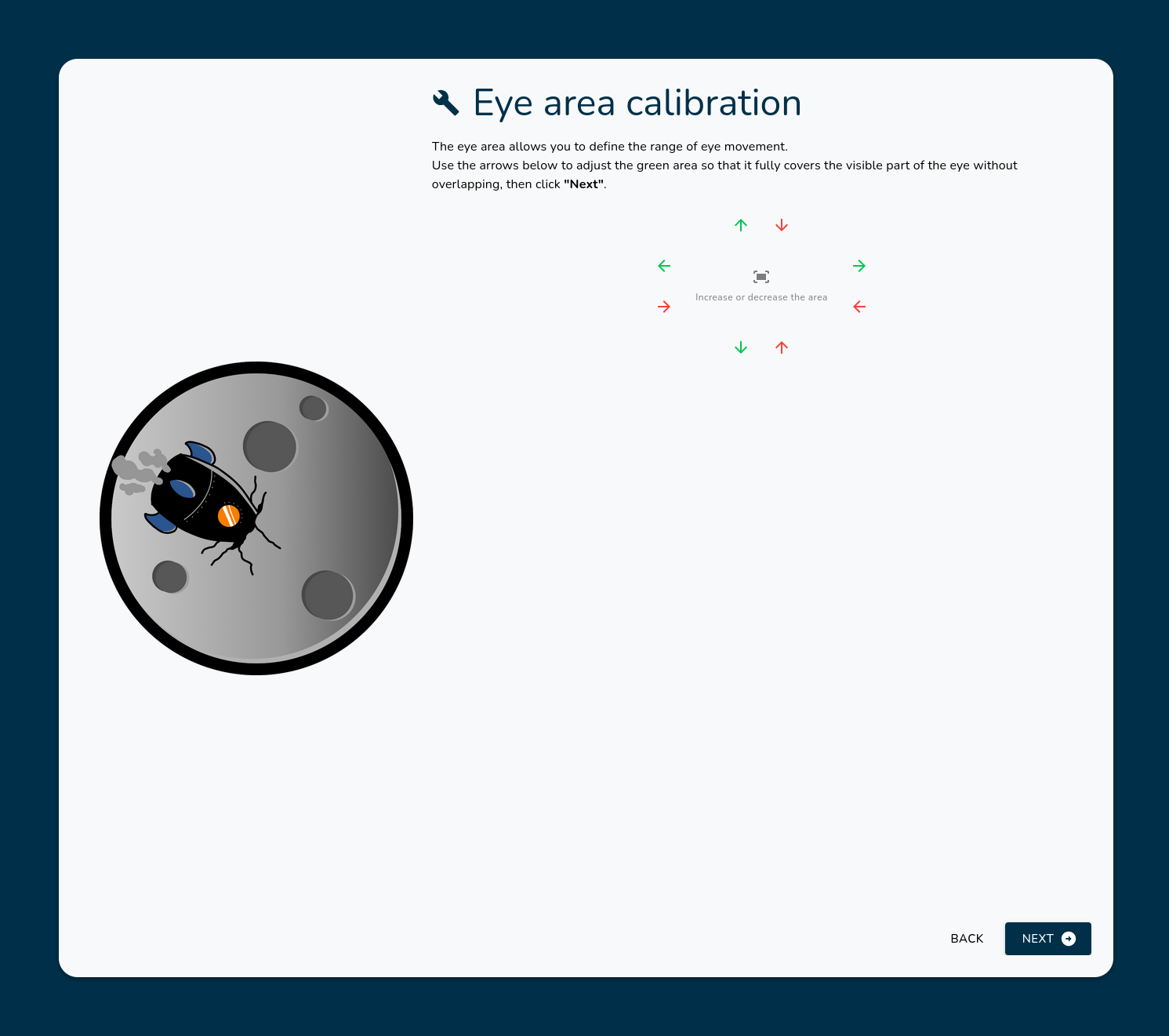
The eye area defines the zone where the eyes can move. Outside this area, the eyes will not move, ensuring they stay within the visible area of your fursuit or cosplay.
- Adjust the green rectangle using arrow controls
- Click Next when satisfied
- Desktop
- Mobile
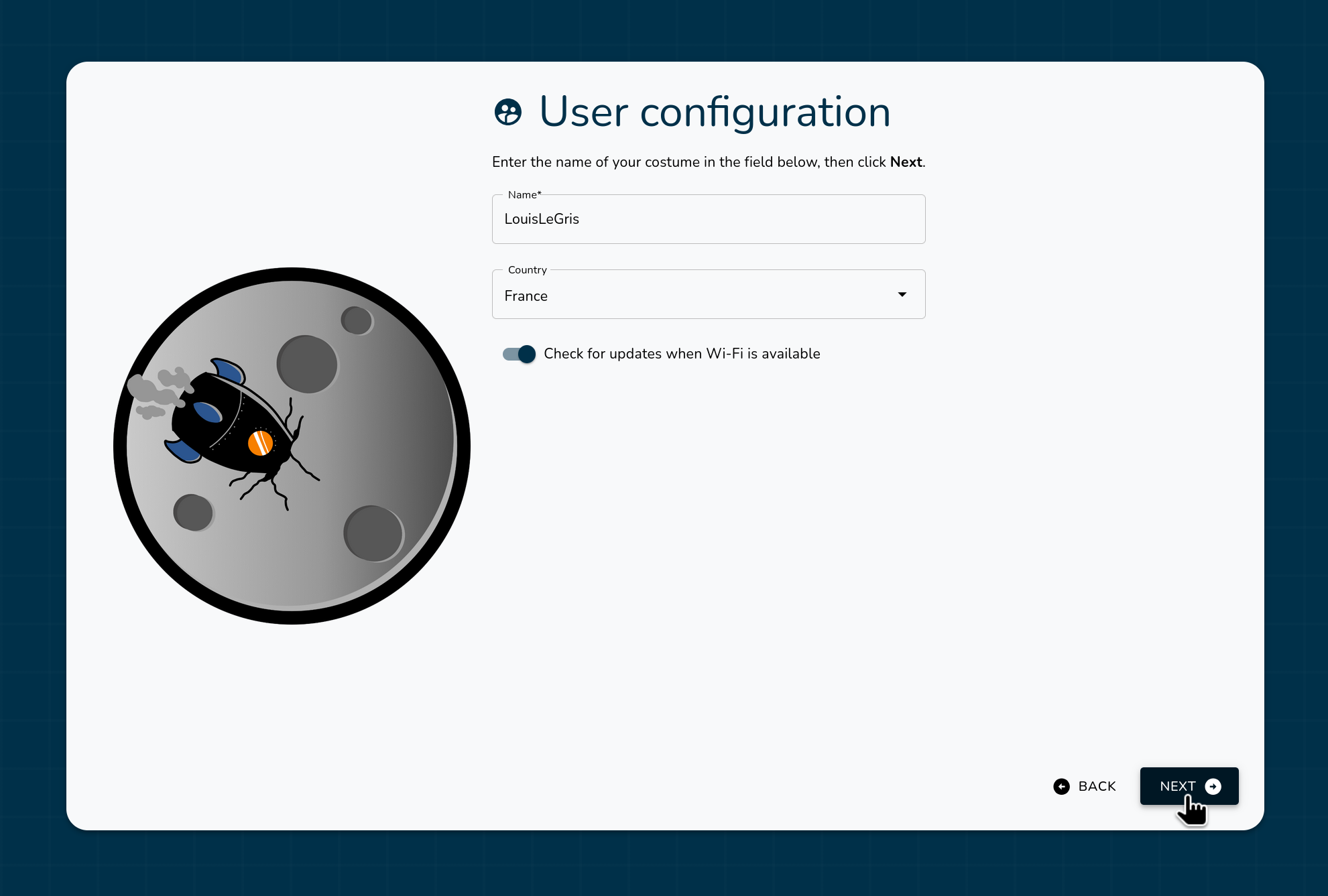
3. User Profile Setup
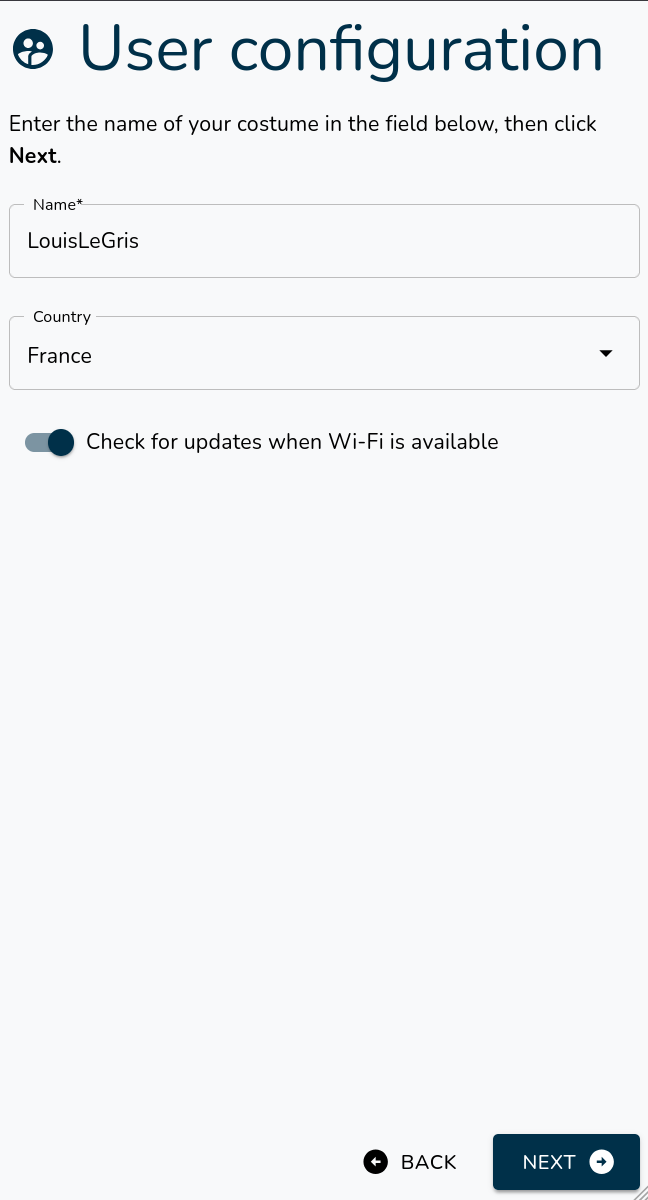
- Enter your preferred username. It will be used across the system and features.
- Select your current country. This setting ensures compliance with local Wi-Fi regulations.
- Click Next
- Desktop
- Mobile
Setup complete! Your eyes should now be displayed.
💡 Important Information
System Operation
Proper Shutdown Methods:
- App method: Click power icon (top-right) → Confirm
- Physical button: Hold white button on the mainboard until shutdown
Always remove power supply after shutdown to prevent battery drain.
Maintenance
Before cleaning your suit:
- Remove the eyes system
- Handle display cables carefully (avoid twisting/pulling)
Accessing Luniris OS
Troubleshooting
If eyes don't display:
- Verify all cable connections
- Check power supply (minimum 15W)
- Restart the system