Install or Uninstall a Feature
Easily install, update, or remove features using the Luniris App.
Install / Update a Feature
1. Open the Luniris App
Open the app on your web browser.
2. Navigate to the Features Section
Locate the features section on the home page, then click the Add button.
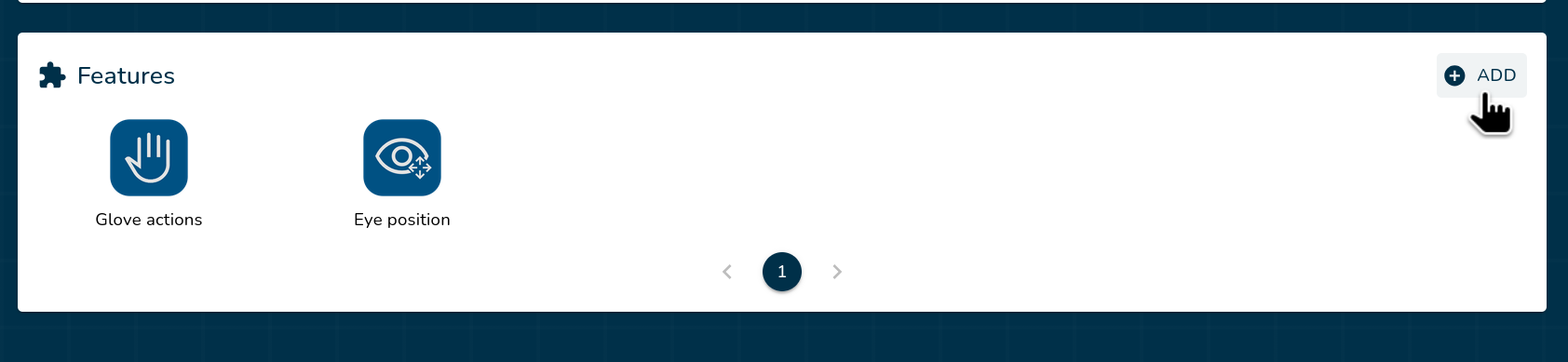
3. Choose Your Feature Type
Depending on the type of feature you want to install, follow one of the paths below:
Option A: Install an External Feature
- Click From a file
- Drag and drop the feature file (
.zip) into the designated area, or click to browse and select the file. - Wait for the upload to complete.
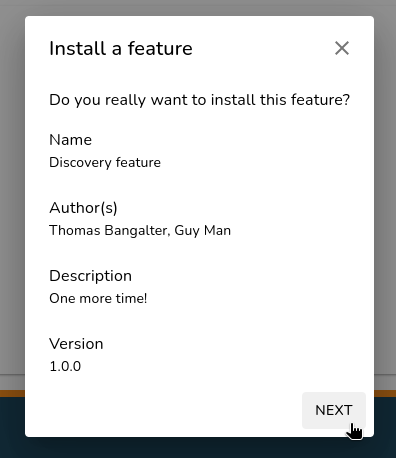
- Review the feature details to ensure accuracy.
- Click Next to confirm the installation.
Note: If you encounter an error, refer to the Troubleshooting section.
Option B: Install a System Feature
- Click A system feature.
- Select the desired system feature from the provided list to install it automatically.
Uninstall Feature
1. Open the Luniris App
Open the app on your web browser.
2. Navigate to the Features Section
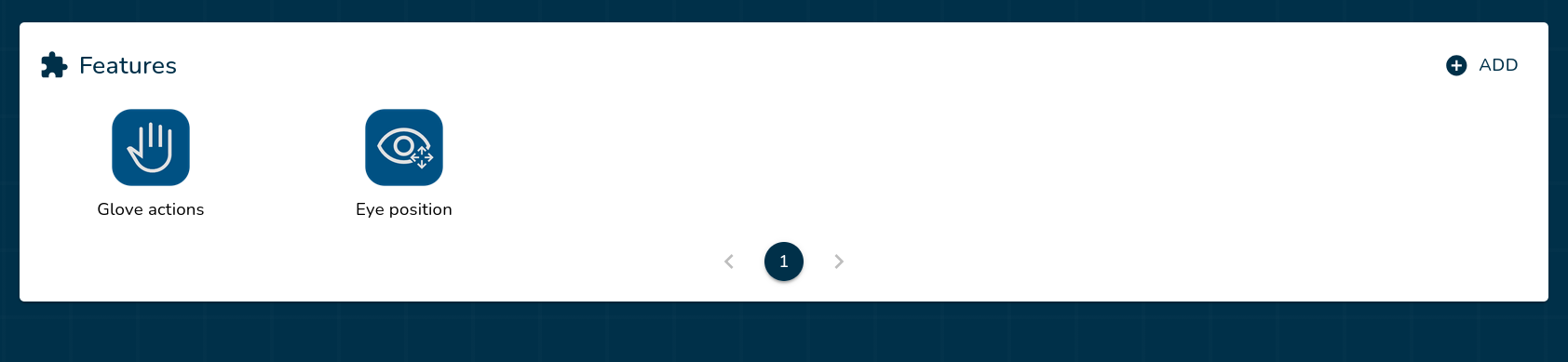
Locate the features section on the home page.
3. Uninstall the Feature
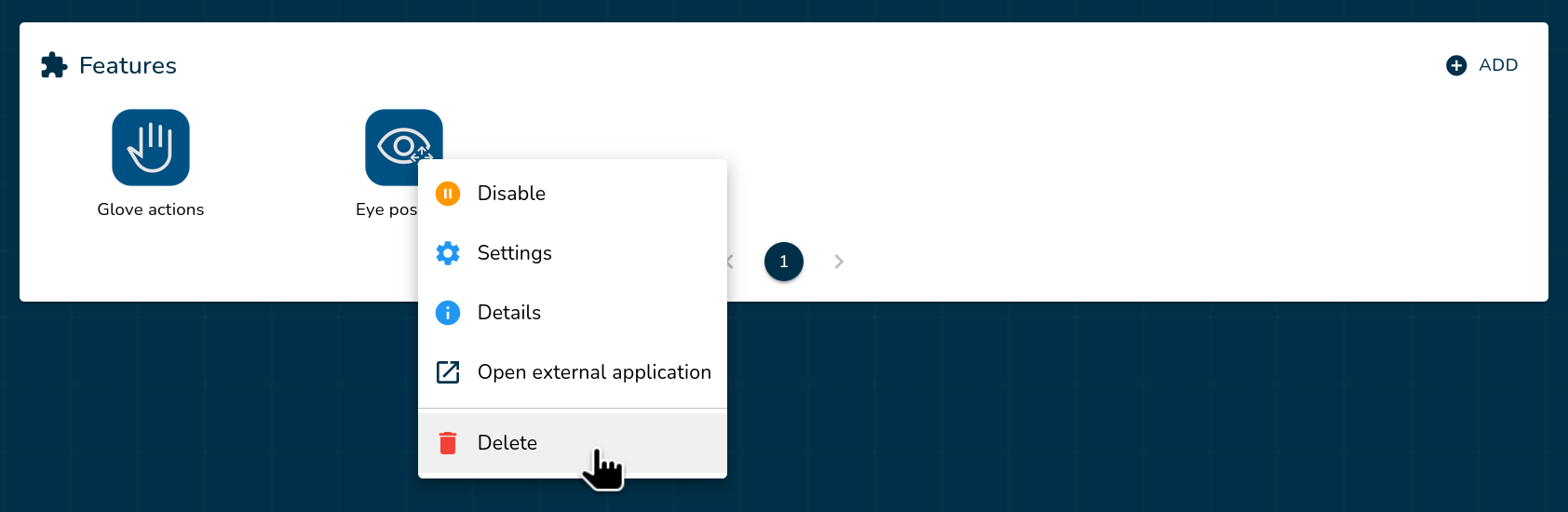
Right-click the feature (or press and hold if you are using a mobile device or tablet) you want to uninstall and select Delete.
Troubleshoot Installation Errors
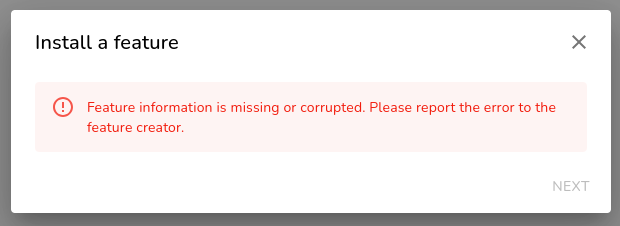
"Feature information is missing or corrupted"
- Ensure the feature file is a valid
.zipfile. - Verify that the
.zipfile contains the required manifest files.
"Manifest entry point path not found"
- Check if the
entryPointPathparameter inmanifest.jsonis empty or invalid. - Ensure the file specified in
entryPointPathexists in the.zipfile.
"API version is too old"
- Verify if the feature is compatible with the current API version.
- Update the
minimalApiVersionparameter inmanifest.jsonif necessary.
"The manifest file or the language information was not found in the package"
- Ensure the
manifest.jsonfile exists in the.zipfile. - Check if the
languageparameter inmanifest.jsonis valid and supported.
"Settings manifest file not found"
- Verify that the
settings.manifest.jsonfile exists in the.zipfile. - Ensure the file is a valid JSON format.